How to create projects and WBS-Gantt-Chart in JIRA
===
<h2>
Open JIRA
</h2>
1. Go to https://its.cern.ch/jira/
2. Log in
<h2>
Create and delete a project in JIRA
</h2>
<h3>
Create a project in JIRA
</h3>
1. Go to https://its.cern.ch/jira/ and log in, if you have not done it before
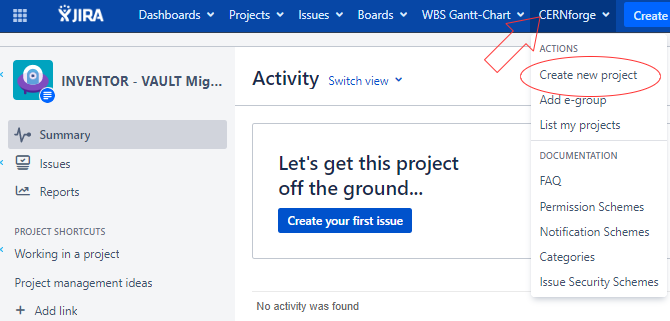
2. Place the cursor over CERNforge and on the drop-down menu click on Create new project
3. Choose a name and a key, then select Project management in the drop-down menu of Project template
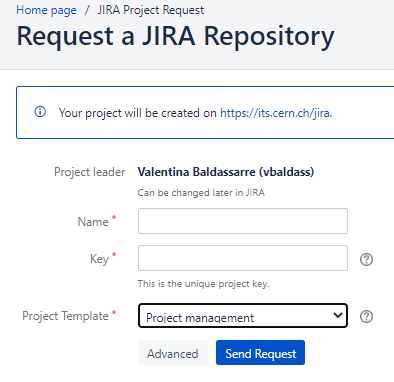
3. Click on Send Request
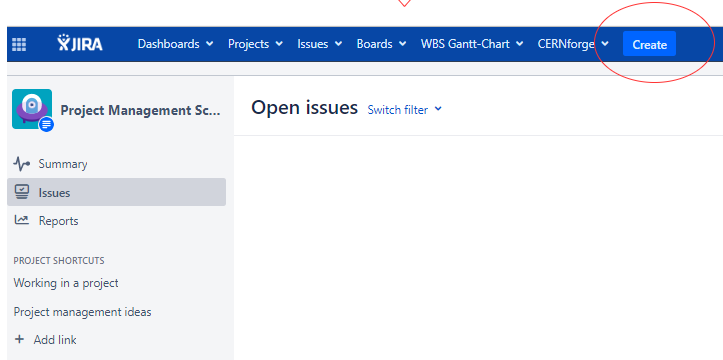
4. Your project is created, now click on Open issues

5. Click on Create to create new issues (i.e. tasks)
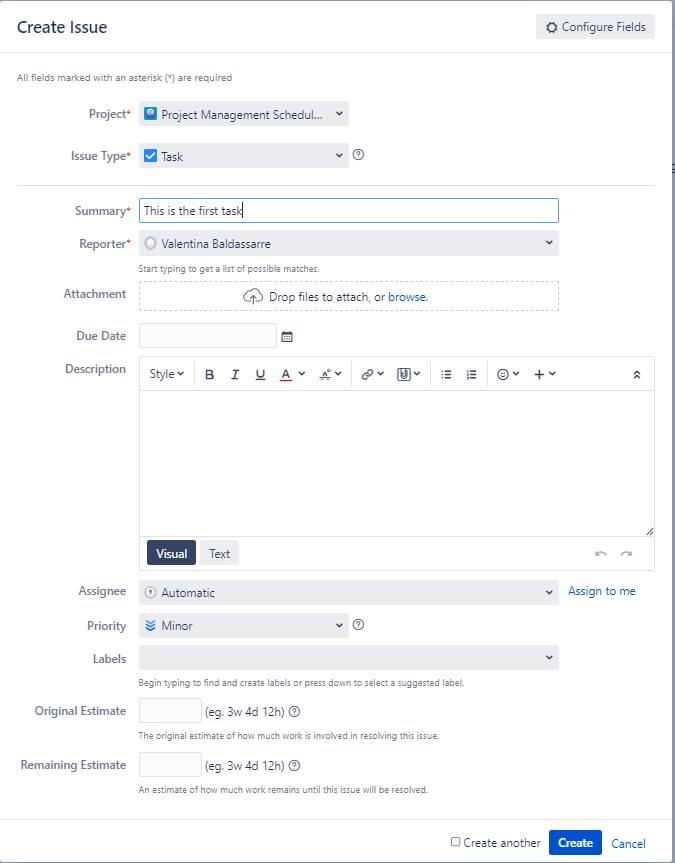
6. Add all necessary information to your task (e.g. Summary, Reporter, Due Date, Descriptio, Assignee, Pritority, etc.) and click on Create
7. Create as many issues as there are tasks
<h3>
Delete a project in JIRA
</h3>
1. JIRA Projects can be deleted only by the IT Service, because in case of mistake, it would be almost impossible to restore projects. Therefore, please create a ticket in CERN Service Portal (https://cern.service-now.com/service-portal?id=browse_forms).$
<h2>
Create and delete a WBS Gantt-Chart in JIRA
</h2>
<h3>
Create a WBS Gantt-Chart in JIRA
</h3>
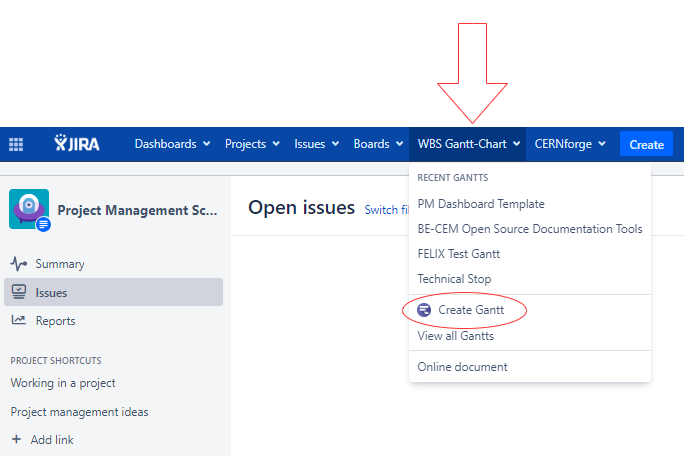
1. Place the cursor over WBS Gantt-Chart and click on Creat Gantt
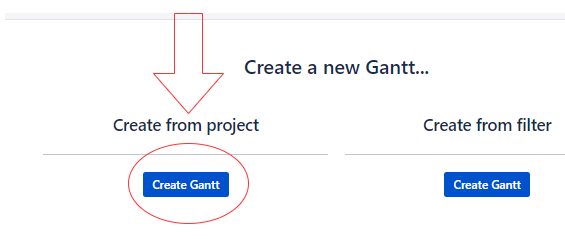
2. Place the cursor over Create from project and click on Creat Gantt
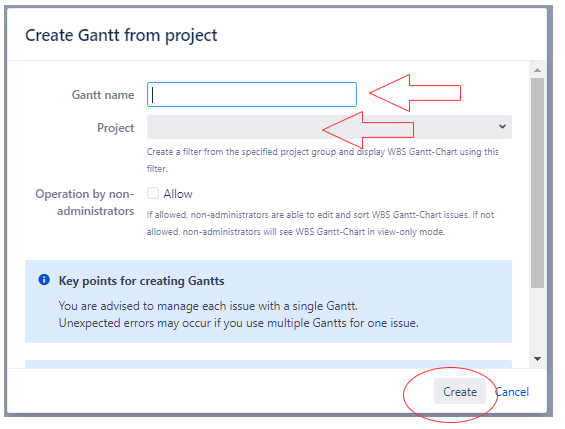
3. Choose a name for your Gantt-Chart (e.g. you can choose the same name as the project) and select your project for the drop-down list of Project (you can write the name of your project and it will be displayed immediately)
4. Your Gantt-Chart is now created
5. Click on the down arrow next to your project name to display all tasks and subtasks
6. Click on Day to change the view (you can select the monthly view, etc.)
7. Click on View to display the Progress line, the critical path, etc
8. Click on Data to export the Gantt-Chart in different formats

<h3>
Create a WBS Gantt-Chart in JIRA from an existing project
</h3>
1. Go to https://its.cern.ch/jira/ and log in, if you have not done so before
2. Log in
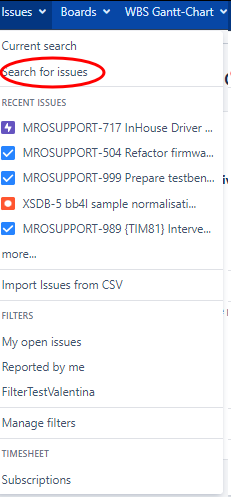
3. Click on Issues -> Search for Issues
4. 
5) Use a Jira Query Language (JQL) like: project = "project name" AND "Epic Link" = "epic name" and click on Search
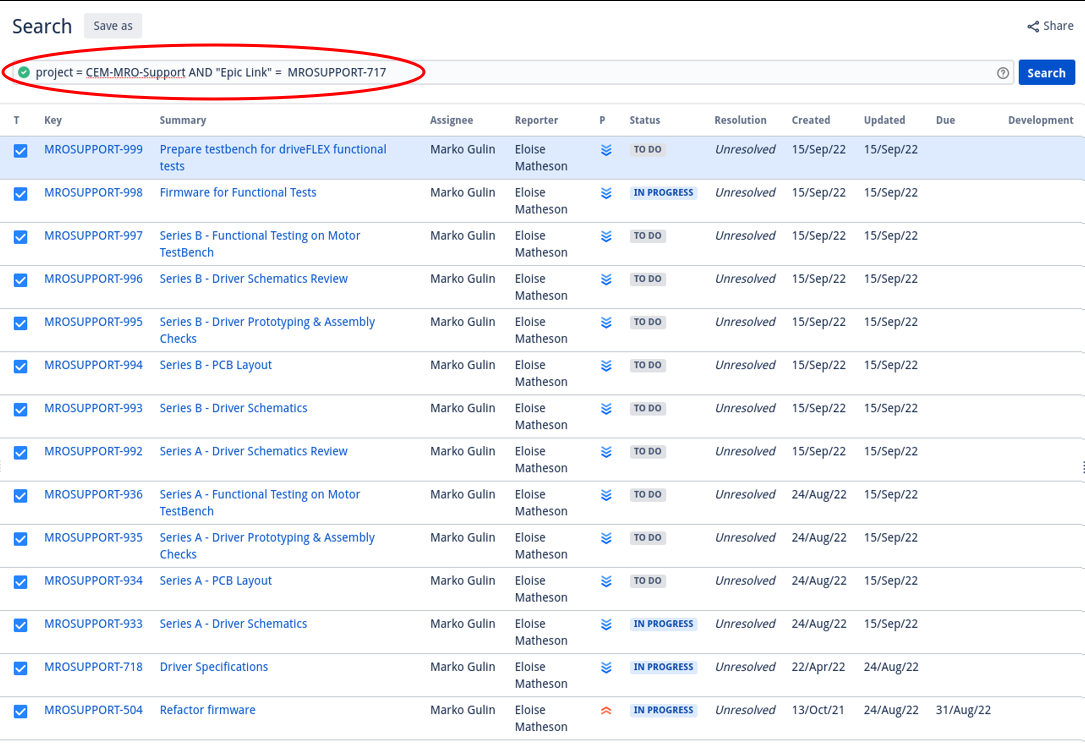
You can check or find the Epic name, by clicking on Edit 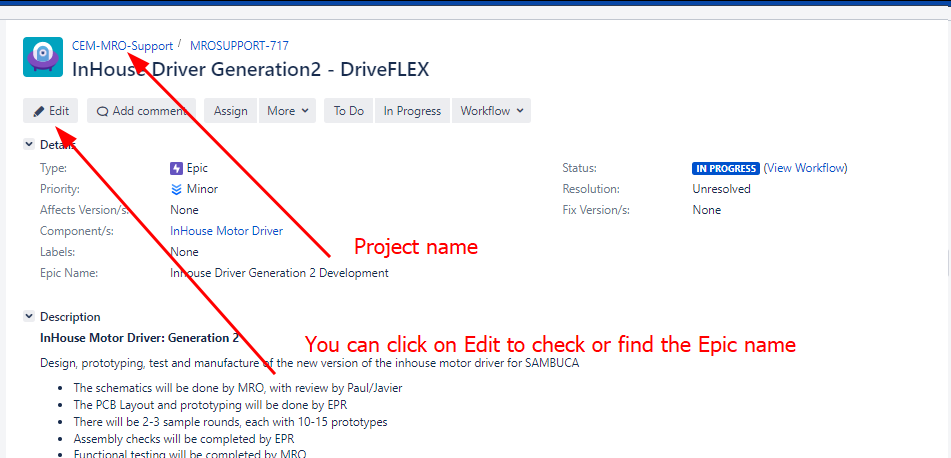
4. Click on Save as
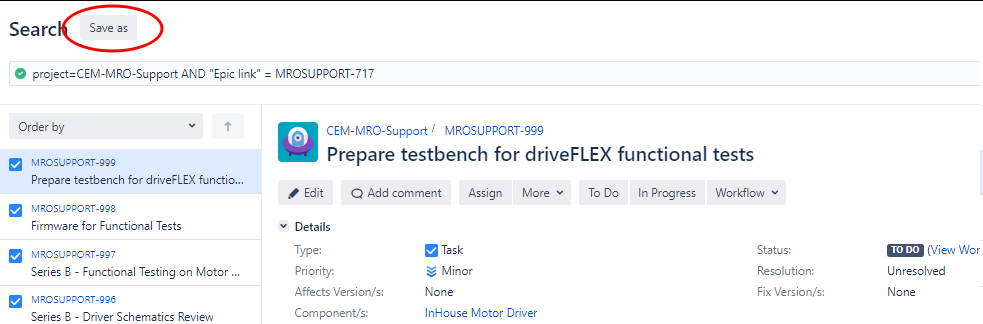
5. Choose a Filter name and click on Save
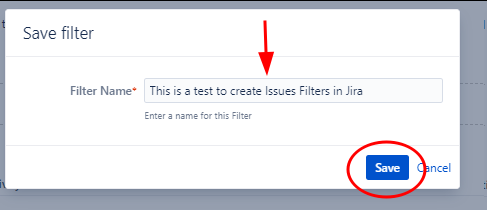
The filter is now created
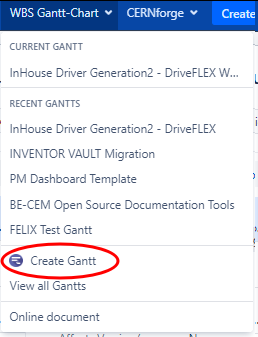
6. Place the cursor over WBS Gantt-Chart and click on Creat Gantt
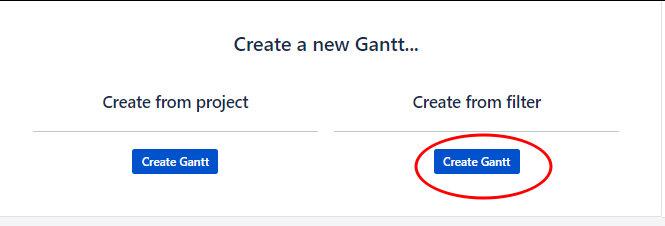
7. Click on Create from filter
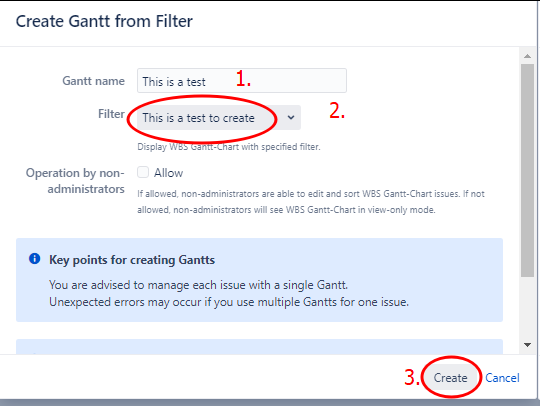
8. Choose a WBS Gantt-Chart name, select your filter from the list and click on Create
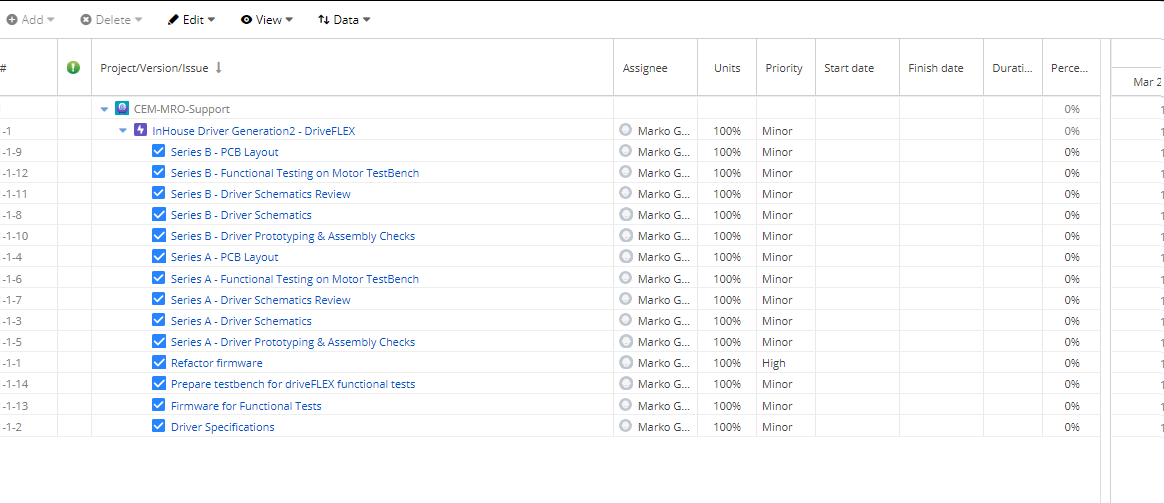
9. Your WBS Gantt-Chart is now created
<h3>
Delete or Copy a WBS Gantt-Chart in JIRA
</h3>
1. Go to https://its.cern.ch/jira/ and log in, if you have not done so before
2. Place the cursor over WBS Gantt-Chart and click on View all Gantts
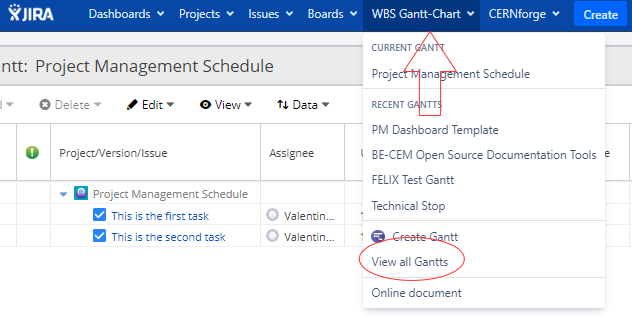
3. Ctrl + F to write your WBS Gantt-Chart name and find it quickly
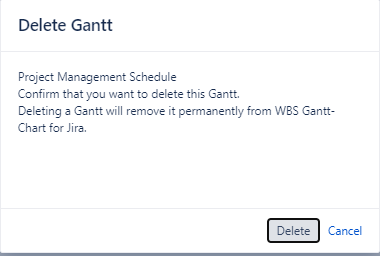
4. Place the cursor over your WBS Gantt-Chart and click on Delete or Copy

5. If you want to permantly delete the WBS Gantt-Chart, click on Delete
<h2>
Edit or delete Filters in JIRA
</h2>
1. Go to https://its.cern.ch/jira/ and log in, if you have not done so before
2. Place the cursor over Issues and click on Manage filters
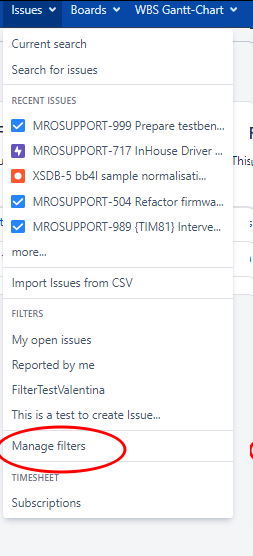
3. Click on Edit or Delete according to your needs
